
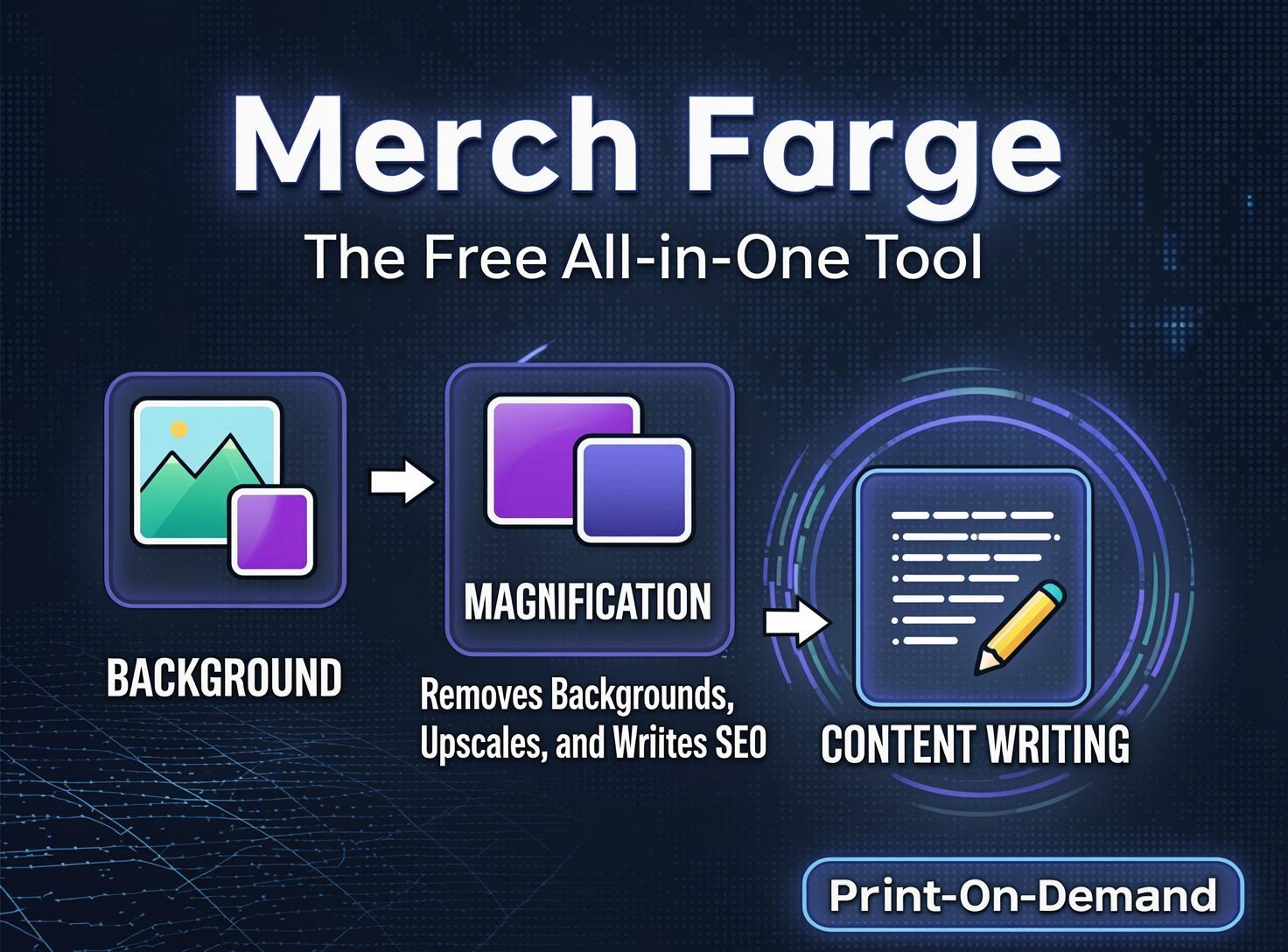
Merch Forge: The Free All-in-One Tool That Removes Backgrounds,

Background removal and SEO are among the most tedious and time-consuming parts of the print-on-demand workflow. After hearing this frustration repeatedly from dozens of POD sellers—and experiencing it firsthand—a free tool was built to solve both problems simultaneously. It's called Merch Forge, and it combines upscaling, background removal, half-tone conversion, resizing, file compression, and AI-powered SEO keyword generation into a single, hands-off process. You drag your designs in, hit process, and the tool handles everything. Here's exactly how to use it and how to integrate it into your upload workflow.
What Merch Forge Does
Merch Forge is designed with a single principle: keep it simple. There are very few settings. You drag any designs into the tool, select your options, and hit process. The tool handles:
Upscaling for print-quality resolution
Background removal using a color-picker method optimized specifically for POD
Half-tone conversion for designs with glow effects, lightning, or bootleg-style graphics
Resizing to Amazon Merch dimensions (or custom dimensions for Etsy sellers)
File compression for upload requirements
AI SEO keyword writing directly into the file name
The tool is free because this part of the POD process shouldn't require spending significant time or money.
How the Background Removal Works
The background remover uses a color-picker approach designed specifically for print-on-demand. For most standard designs, it works exactly as expected. But there's also a half-tone converter that's specifically useful for designs with heavy glow effects, lightning bolts, or the bootleg aesthetic—styles where traditional background removal produces harsh edges or visible artifacts. The half-tone converter creates a dotted, textured edge that prints cleanly and doesn't cause returns. Test prints of half-tone designs have proven they work reliably on physical products.
For designs that need standard background removal and others that need half-tone conversion, you can process them in the same batch. Click the top-left corner of any individual design to switch its background removal method without affecting the others.
After processing, you can preview designs on different background colors—red, gray, black, or any custom color—to check the quality of the background removal. For designs with fine details like cracks or small text elements, inspect them on the intended garment color. A design meant for black shirts may show minor specks when viewed on white, but those specks are invisible on the dark background it was designed for. Match the preview color to the actual product color for an accurate quality check.
Resizing and Custom Dimensions
The tool resizes designs to Amazon Merch dimensions by default, aligning artwork to the chest area with appropriate padding. If you sell on Etsy or another platform requiring different print file sizes, the setup menu lets you change the dimensions. Whatever size you set, all processed files will be saved at those dimensions.
There's also a max quality upscale toggle. On slower or older laptops, turning this off uses a slightly weaker but faster upscaler. The quality is still sufficient for print, but it won't be quite as sharp as the default max setting. For users with weaker hardware struggling with long processing times, disabling max quality can significantly speed things up.
AI SEO Keyword Generation in File Names
This is one of the most impactful features. When enabled, the AI scans each design and writes relevant SEO keywords directly into the file name. A "Plant Mom Club" design gets gardening and house plant added. A "Trust Me, I'm a Doctor" design gets veterinarian and funny included. The AI has been trained to generate Amazon Merch-ready keywords that combine parts of the phrase with the target audience or main niche keywords. It doesn't always produce perfect results on every design, but in most cases the output is immediately usable.
This feature is optional. You can keep original file names and handle SEO manually if you prefer.
Integrating SEO File Names Into Your Upload Workflow
Once files have SEO keywords baked into their names, two upload tools can instantly populate titles and brands without manual typing.
Option 1: Flying Upload (Paid)
In the edit window, drag designs with the same background color optimization. Go to Features → Advanced MBA → File Name as Title, then repeat with File Name as Brand. Every design instantly has its title and brand populated with the AI-generated keywords. Apply saved product profiles for pricing, colors, and other settings, and the listings are ready for upload. This workflow takes seconds per batch.
Option 2: Snap for Merch by Amazon (Free Chrome Extension)
After installing the Snap extension, an extra set of fields appears on the Amazon Merch create page. Use the Snap Bulk Upload button. Drag designs into the upload box, configure which products they apply to, and enable the text replacement feature. Snap replaces #snap in the title or brand template with the actual file name. All SEO keywords from the file name are automatically written into each listing. The automation fills in all fields; you just click publish or save to draft when it's done.
Design Quality Considerations
Background removal isn't perfect on every design type. Highly detailed text designs with cracks and fine elements may leave tiny specks visible on white backgrounds at extreme zoom levels. This isn't a flaw in the tool—it's a limitation of free background removal in general. These designs are intended for dark garments where specks are invisible. Don't put a design meant for a black shirt onto a white product. Match the design's original background color to the intended garment color, and the results will be clean and print-ready.
Processing Speed
A batch of eight designs processes in approximately 20 seconds, depending on settings and computer speed. When SEO naming is enabled, downloading takes slightly longer because the AI scans each design and generates keywords. The queue can be canceled at any point if you made a mistake or your computer is freezing. Hovering over images during processing shows a large preview of how well the tool is performing in real time.